
Autofill (beta) is an add-on for Chrome. It takes your client's submitted answers from PolicyStream and fills them into the carrier's e-app. You review everything and submit it yourself.
It works with a growing list of carriers. Settings → Autofill shows which ones it supports today.
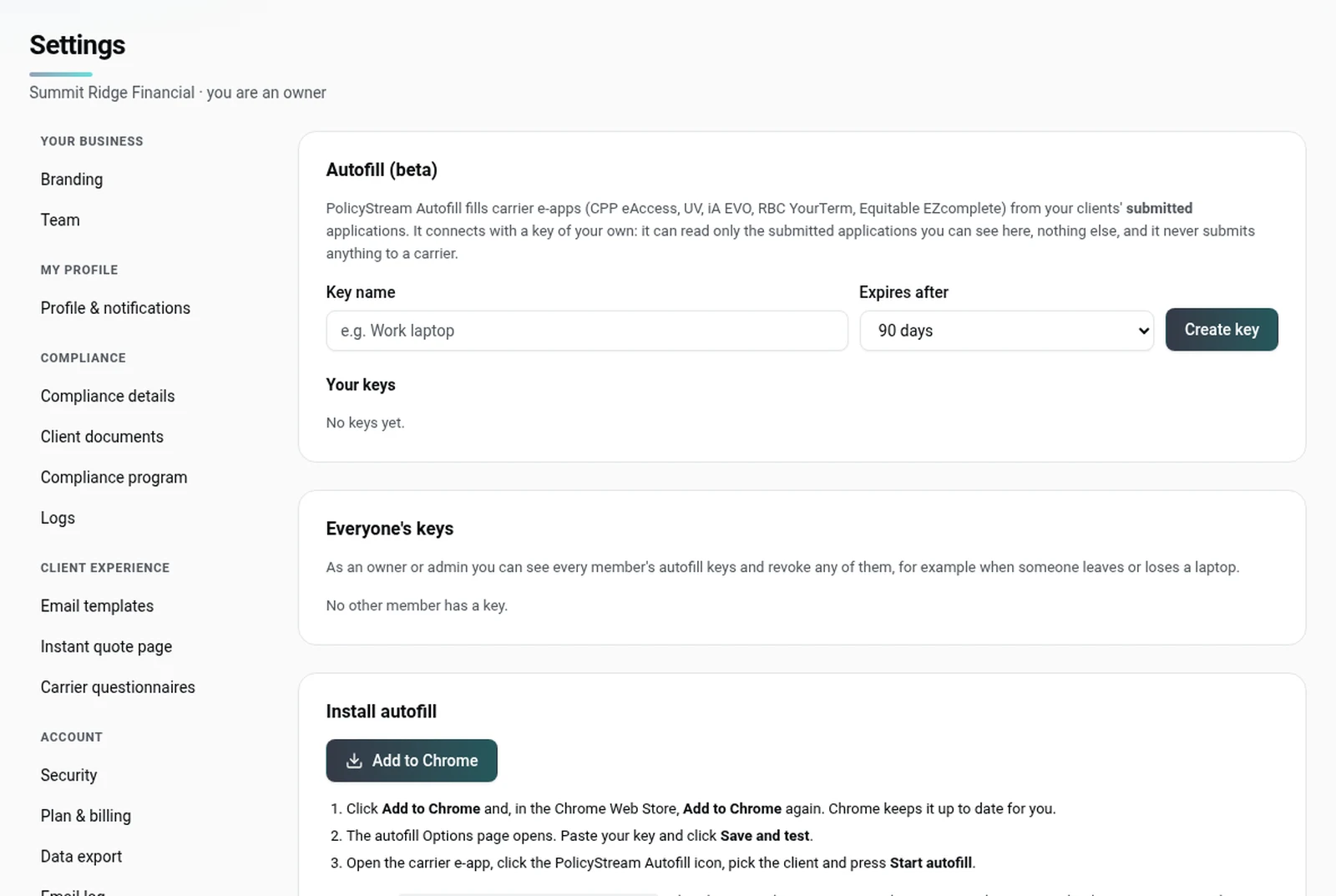
Install it
- Go to Settings → Autofill and click Add to Chrome.
- Add it from the Chrome Web Store. Chrome keeps it up to date for you.
- The Autofill options page opens.
Connect it with a key
- In Settings → Autofill, click Create key. Give it a name, such as "Work laptop", and pick how long it lasts (30, 90 or 180 days, or 1 year).
- Copy the key now. It won't be shown again.
- Paste it into the Autofill options page and click Save and test.
Fill an e-app
- Open the carrier's e-app in Chrome and start the application as usual, up to the first page of questions about the client (for some carriers that means building the illustration first).
- Click the PolicyStream Autofill icon.
- Search for the client and pick them. The list shows submitted applications only, with the product each client applied for. Clients with questions for the carrier you have open come first. Ones without that carrier's questions, or sent with an older carrier form, are greyed out.
- Once you pick a client, the popup lists anything their answers don't cover (for example banking details), so you know where Autofill will stop.
- Click Start autofill. A panel on the page shows each field as it's filled.
- Autofill fills each page and presses Next by itself, pausing when something needs you. It stops before the carrier's signature or submit step. Check every page.
The panel
- The pause button (❚❚) stops after the current field. Press ▶ to resume.
- Stop autofill ends the run. Continue carries on after you've dealt with something it paused for.
- Show me jumps to a field that needs you.
- ⚑ Report a problem tells PolicyStream something went wrong on the page. Add a short note if you like. If a run fails, the panel offers to send a report for you, and errors are reported to us automatically. Reports describe fields by their label only, never your client's answers.
Under ⚙ Options (remembered for next time):
- Apply defaults answers questions the client wasn't asked with the usual answer (for example monthly billing, or owner = insured), outlined in orange for you to confirm with the client. It starts on. Turn it off if you'd rather answer those yourself: they're then left blank and listed for you.
- This page only fills the page you're on and stops without pressing Next.
The panel lists what needs you under Needs you on this page and Couldn't place, and any defaults it used under Defaults to confirm (orange).
When a run ends or you stop it, a run summary is saved to the client file automatically.
When Autofill leaves something for you
- Sections you didn't ask. If you left a section out of the client's link, those questions show "Not asked — fill with client" and stay blank.
- Details the client didn't give. Anything the application doesn't cover (such as banking, or extra details a carrier wants on a Yes answer) is listed under Needs you on this page. Fill it in, then press Continue.
- Questions it can't match. If a carrier's answer options don't match the client's answer, Autofill leaves the field blank and lists it under Couldn't place.
- Changed questions. If a carrier changes a question's wording, Autofill leaves it blank, outlines it in red and tells PolicyStream. We update the mapping. You don't need to report it.
- Steps that are always yours. Client consents, signatures and anything on the carrier's sign and submit pages.
What Autofill never does
Autofill never submits an application, signs, requests signatures or ticks a client consent on a carrier site. Those steps are always yours.
Good to know
- Each person has their own keys (up to 10 active at once). Revoke a key in Settings → Autofill if a laptop is lost. Owners and admins can see and revoke everyone's keys.
- A key only reads the submitted applications you can see in PolicyStream.
- An application sent with an older carrier form shows as "fill by hand" in the list.
- A run stays in the browser tab you started it in. It stops if you close that tab or leave it idle for 30 minutes. Press Start autofill again to pick up.
- Autofill updates itself. If yours is too old, it says Update required and fills nothing. Opening the Autofill popup checks for the update and installs it; reopen the popup a moment later.
Still stuck? Email [email protected].