
When you sign in for the first time, PolicyStream opens a short setup wizard on your dashboard. It shows until you finish or skip it (assistants don't get it). Everything you enter saves to the same place as Settings, so you can change it later.
The setup wizard
- On the welcome screen, click Set up my account. If you'd rather look around first, click Skip and explore. Setup waits in Help & learn → Finish setup.
- You: add your name as clients see it, your mobile and the provinces you're licensed in. Owners and admins can also add a business name. Leave it blank if you're personally licensed: clients then see your own name.
- Brand (owners and admins only): upload your logo and pick a button colour and a link colour. The preview shows what your client's email will look like.
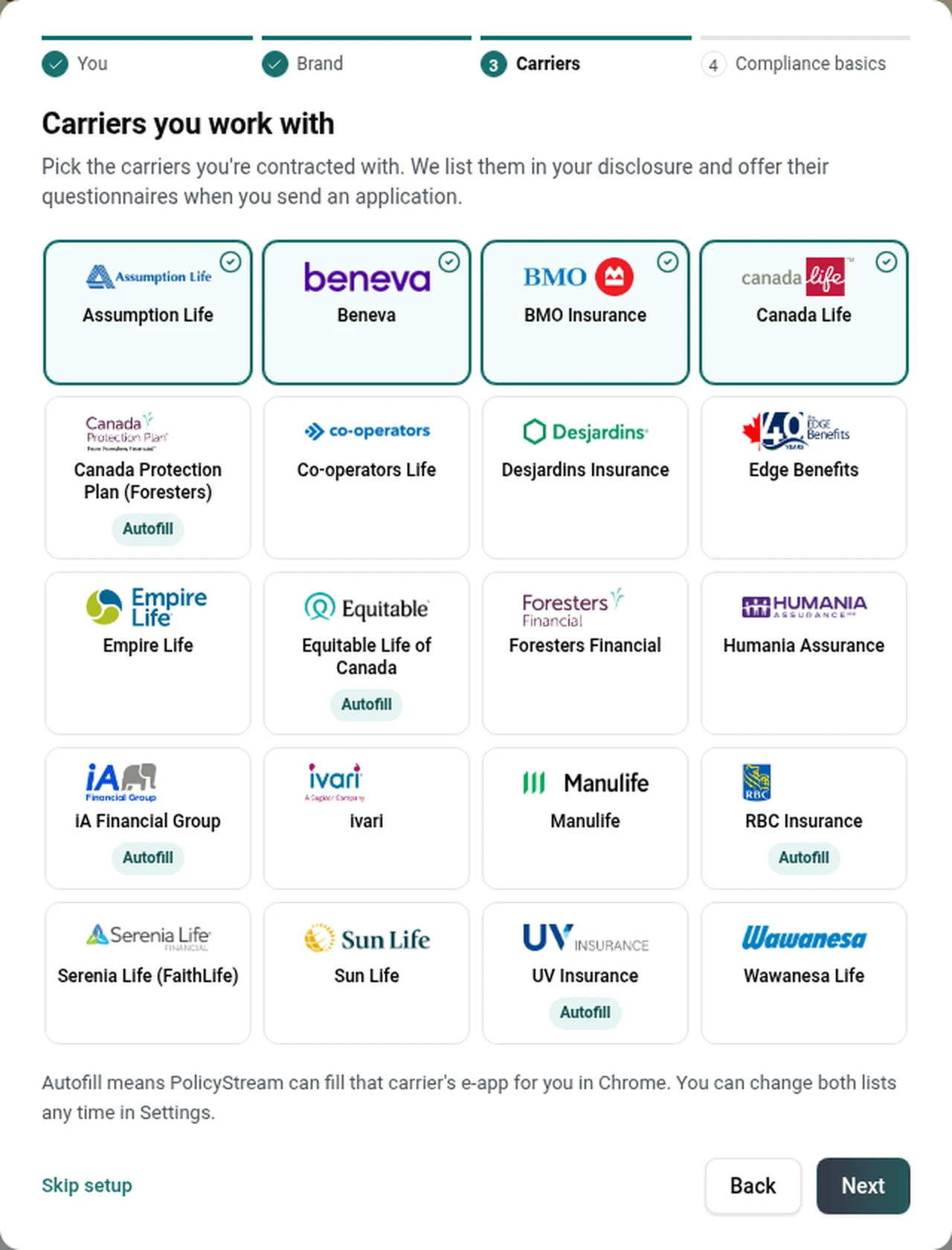
- Carriers: pick the carriers you're contracted with. They're listed in your disclosure. If you're an owner or admin, your picks also turn on those carriers' questionnaires for the send page. Carriers tagged Autofill can be filled for you in their e-app in Chrome.
- Compliance basics: your business mailing address and MGA (owners and admins), your E&O insurer and policy number (optional) and other business activities. You can tick I'll do this later. Anything left blank shows as "[not set]" in the documents your clients sign.
You can leave at any step with Skip setup.
Sample clients
When an owner or admin opens the wizard in an empty workspace, PolicyStream loads sample data: six demo client files with saved quotes, four of them with applications. They're marked Sample. Sample clients use example addresses, so nothing is ever emailed to them. When you're done, an owner or admin can click Remove sample data on the dashboard.
Take the tour
The Take the tour card on your dashboard walks you through where everything is: 15 short stops, about 3 minutes. Click Start the tour and press Next at each stop. It opens each page for you, from the instant quote and needs analysis to sending an application, reviewing it, Autofill, leads, branding and email templates.
Stop whenever you like. The card then shows Resume tour and where you left off. Click Hide to put it away, and bring it back from Help & learn → Resume tour.
Send a test application to yourself
This is the fastest way to see what your clients see.
- Go to Clients and add yourself as a client, with your own email.
- Click Send application on your client file.
- Choose the forms and send it. The link comes to you.
- Open the email on your phone or computer and fill in the application as a client would.
- Back in PolicyStream, open the application and look at the answers. Then try Autofill on it (see Installing and using Autofill).
Help & learn
Click Help & learn at the bottom left of the sidebar for How-to articles, the intro video, All updates, Take the tour (or Resume tour), Finish setup, Report a problem and Email support.
Right above it, What's new shows the latest changes to PolicyStream.
Good to know
- Compliance basics (provinces, carriers, mailing address, MGA and other business activities) never block a send. Anything left blank shows as "[not set]" in the documents your client signs. See Compliance details.
- Two-step sign-in is recommended for everyone. It becomes required for owners and admins as soon as the workspace has a second person, and a pending invite counts.
Still stuck? Email [email protected].