
Clients don't need an account or a password. They open the link you sent on their phone or computer and work through it at their own pace. The page carries your logo (or your business name if there's no logo) and your colours.
The quickest way to see it for yourself is to send a test application to your own email. See Getting started.
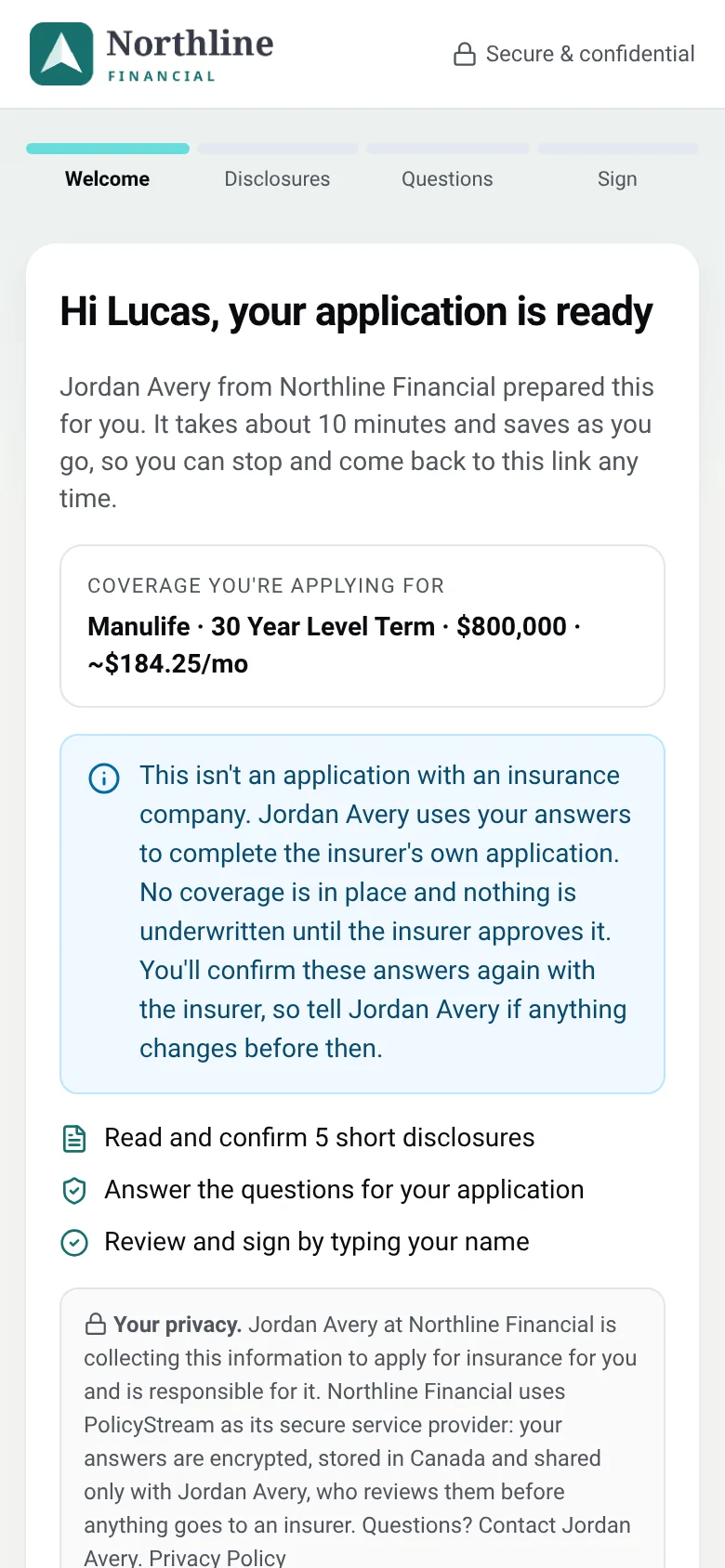
The steps your client goes through
The progress bar shows four steps: Welcome, Disclosures, Questions and Sign.
- Welcome: who prepared it, about how long it takes, the coverage they're applying for (when a quote is attached), a note that this isn't an application with an insurance company, and the date the link works until. They click Get started.
- Disclosures: your client documents (advisor disclosure and the others). They open each one, read it and confirm it.
- Questions, on one page headed Application questions: - The general application, in sections such as About you, Beneficiaries and Banking. Some questions only appear based on earlier answers, and ⓘ tips explain things like bank institution and transit numbers. - A short Your needs section, if you chose to finish the needs analysis after they submit. - The carrier's health questions, word for word, numbered 1, 2, 3 and so on. - Documents: any uploads you asked for. They can take a photo (JPG, PNG, HEIC) or upload a PDF, up to 15 MB. Files go to you only and are never emailed.
- Sign: they click Review & sign, check their answers, type their full name and tick the confirmation box, then click Sign and submit. Unanswered questions are highlighted so they can finish them first.
Answers save as they go. If they close the page, they pick up where they left off.
Signatures
A signature is a ticked confirmation plus the client's typed name. There's nothing to draw. PolicyStream records the time, IP address, browser and a fingerprint of the exact document they signed.
Device codes
The first device that opens the link is trusted. If the link is opened on a different device, the client sees Confirm it's you and no answers. A 6-digit code is emailed to them automatically. They enter it and click Continue.
If you open the link first yourself (for example with Complete together), your browser becomes the trusted one, so the client will need a code on their own device.
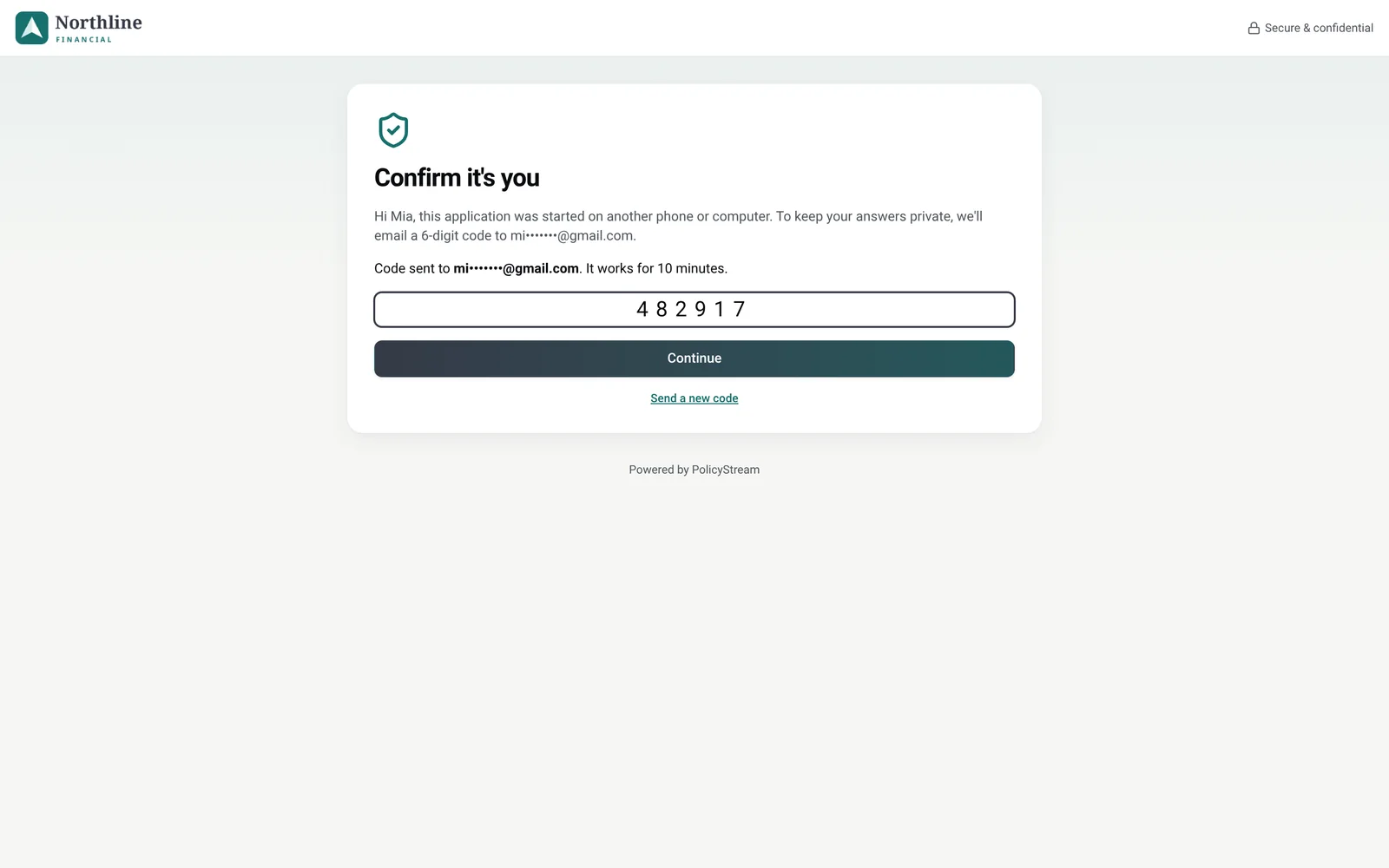
The code lasts 10 minutes. They can click Send a new code (one a minute at most).
After they submit
The client sees a thank-you page with what happens next and gets a confirmation email. After that the link only shows the thank-you page, never the answers. You get an email when they submit (turn it on or off under Settings → Profile & notifications).
Good to know
- If the client answered the general application on an earlier application less than 90 days ago, they only check it and click These are still correct, or change what's out of date. Health answers from the last 30 days, on the same questions, are reused the same way.
- Marketing consent (CASL) is optional and never blocks the application. No answer counts as no.
- A link stops working after 30 days, when you void the application or when you reissue it. The client then sees a message asking them to contact you or ask you for a new link. After 30 days, anything they already answered is kept.
Still stuck? Email [email protected].