
The Quoter compares live life insurance rates (term, plus whole life and simplified issue, with every simplified plan each carrier offers) from Canadian carriers (rates come from Compulife). It has three steps: Client, Needs analysis (optional) and Compare plans. The needs analysis works out an estimated coverage need you can use to set the amount.
Run a quote
- Click Quoter in the sidebar.
- Under Who is this for?, pick an Existing client or a New client.
- Fill in Date of birth, Sex at birth, Tobacco, nicotine or cannabis (12 mo) and Province of residence.
- Leave Health class on Regular unless you know otherwise. Simplified products ignore it.
- Click Compare now, or Needs analysis to work out the amount first.
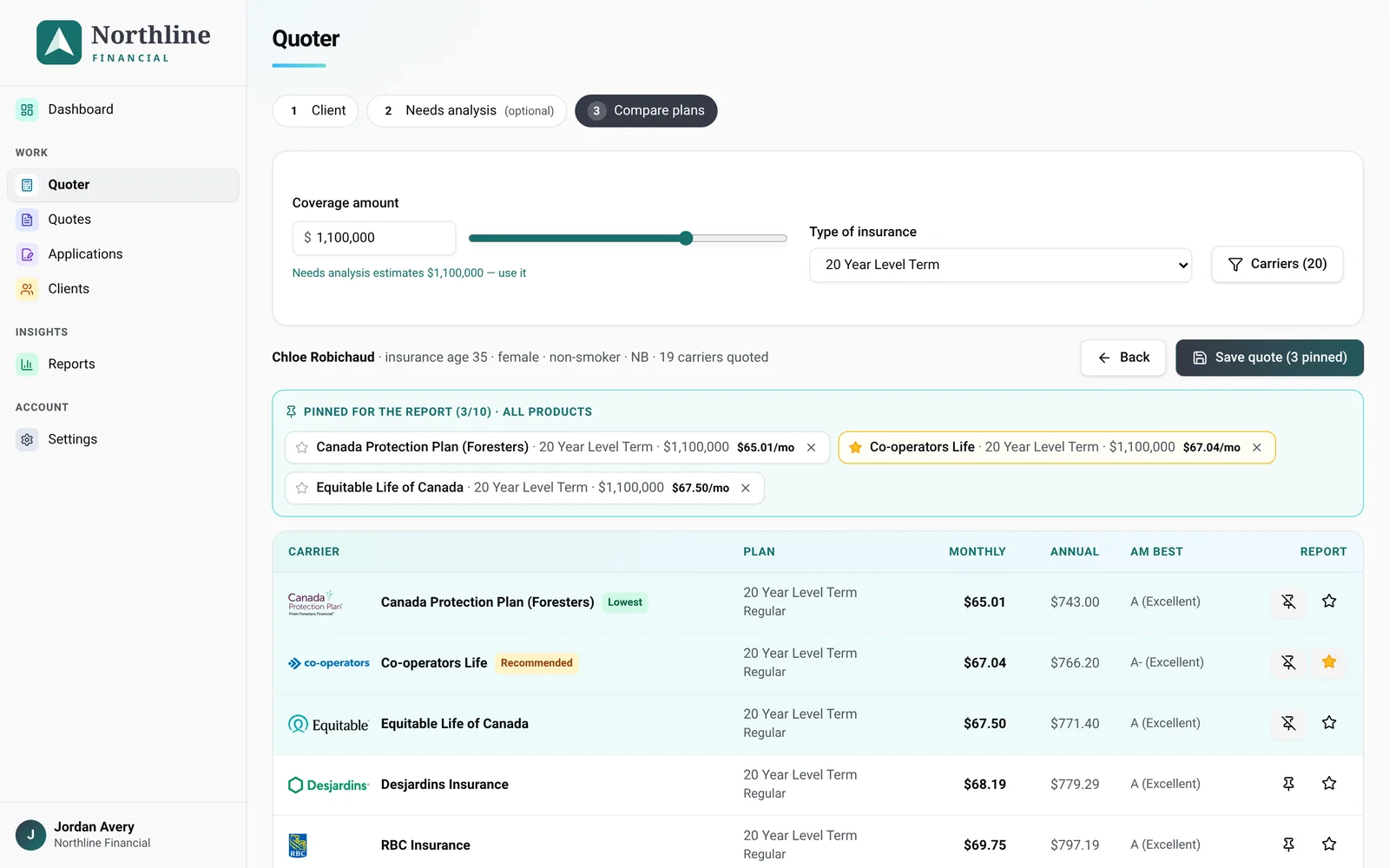
- Choose the Type of insurance and set the Coverage amount.
- Rates appear cheapest first, with the Monthly and Annual premium side by side. Use Carriers above the results to limit which carriers you see. Your selection is remembered for your next quote.
Save it and build a comparison report
- Pin the options you want the client to compare with the pin button on each row (Pin to the client's comparison report). You can pin up to 10. Pins stay when you switch product or amount, but picking a different client starts a new quote.
- Click the star on the plan you'll put forward (Mark as your recommendation), in the results or in the pinned list. Starring a plan pins it too.
- Click Save quote. In the save window, Why you recommend this plan (shows on the report) is where your reasons go. For a new client, add their first name, last name and email: the email is needed to save the quote and email them an application. Their client file is created when you save.
All saved quotes are in Quotes. From a quote you can Email report, Copy report link or print a PDF. Once the client opens the report, the quote shows Client opened the report.
Insurance age and back-dating
Insurers use the age at the client's nearest birthday, so insurance age goes up about 6 months after each birthday. The Quoter shows the client's insurance age and the date it changes under the date of birth (hover the ⓘ next to it for a short explanation).
- If the age goes up within 45 days, an amber Rates go up in N days notice appears above the results.
- If it went up in the last 6 months or so, a blue notice offers a Quote at age X switch to price the plan back-dated. The table then shows what's Paid up front, what it Saves and when it Pays back in. Plans that can't be back-dated are greyed out. Most carriers allow up to 6 months (Equitable 364 days, Sun Life 12 months on term).
The needs analysis
A needs analysis can be done in three ways:
- in the Needs analysis step of the Quoter
- on the send page, with Complete and sign now (a quick calculator shows when the client has no needs analysis on file)
- by the client: if you leave it for later, they answer short basic needs questions in their application link, and you finish it after they submit
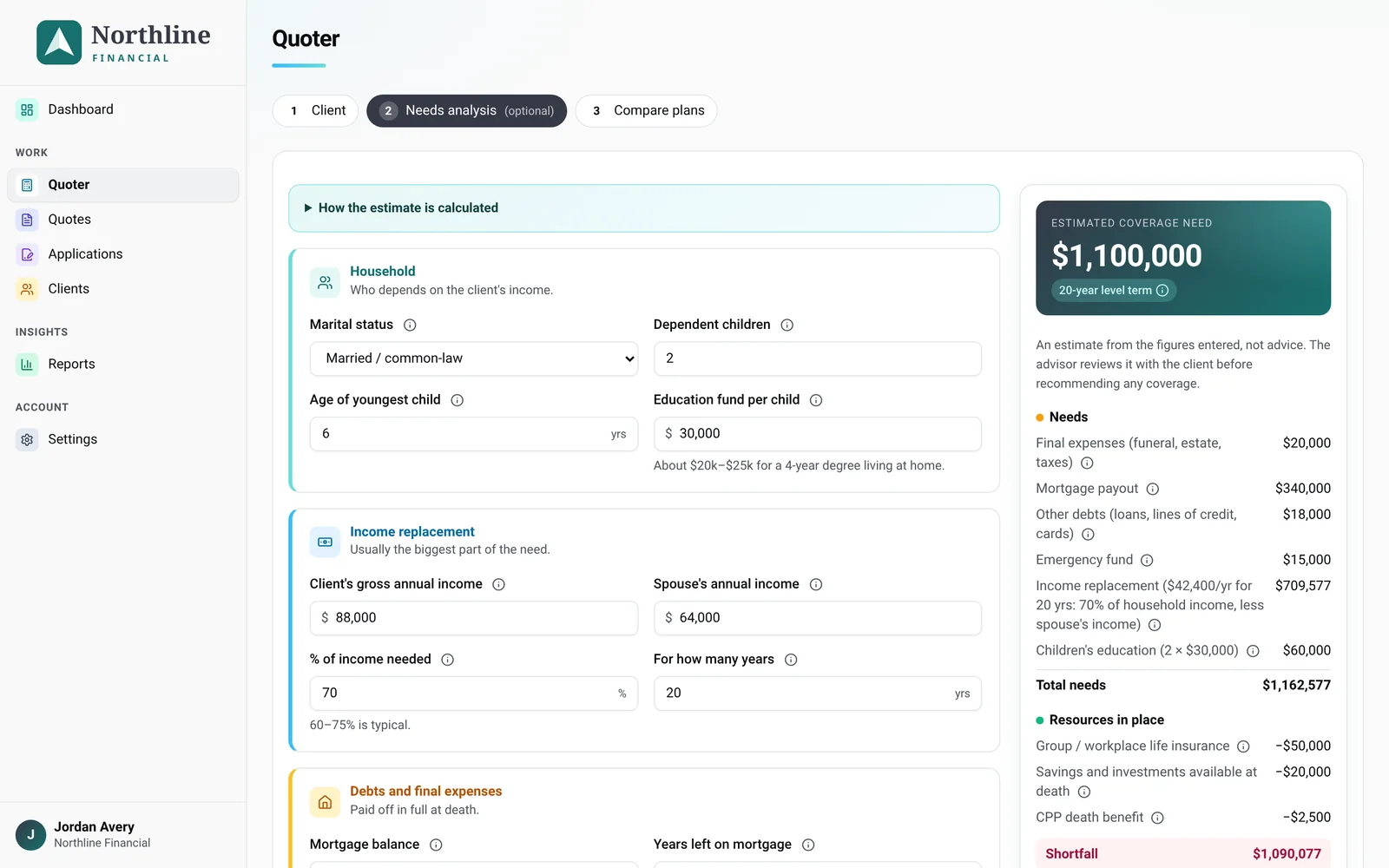
The calculator in the Quoter adds up the needs (income replacement, debts, mortgage and final expenses, emergency fund, education, other goals), subtracts the resources already in place (individual and group life, savings, the CPP death benefit) and shows the shortfall, rounded up to the next $25,000, as an Estimated coverage need. Open How the estimate is calculated for the details. Click Compare plans for $X to quote that amount.
The latest analysis shows in the Needs analysis card on the client's file. Click Show the calculation there to see each line. Every version is kept, with who did it and when. Once there's more than one, History lists them all.
Good to know
- The estimate is a starting point, not advice. You decide what to put to the client, and your own reasons go in the Reasons Why.
- Insurable ages in the Quoter are 18 to 85.
- If the client won't give needs information, tick The client declined to provide this information in the quick calculator on the send page. The client can also decline in their link. It's kept as a signed decline.
- To close a quote, open it and use the status button next to its title: Mark placed… or Mark lost…, so Reports count it. Once the quote has an application, Placed comes from the application's outcome instead.
Still stuck? Email [email protected].