
Your instant quote page lets visitors get term life quotes on their own, under your brand. They can email themselves the quotes or start an application. Each one becomes a lead in PolicyStream.
Before you start
An owner or admin decides who may publish a page. In Settings → Instant quote page, the Team pages card lists each member with an Allowed switch. Solo? Switch on your own.
If you haven't been allowed yet, the page says so and asks an owner or admin to switch it on for you.
Set up your page
- Go to Settings → Instant quote page.
- Turn on Show my instant quote page.
- Choose your Page address. Use lowercase letters, numbers and hyphens.
- Under Insurers shown, pick the insurers to compare (or Select all). Turn Show insurer logos on or off.
- Under Terms and coverage, tick the terms you offer (term life only). The line underneath shows where visitors start and the coverage slider's range. To change them, open Customize starting coverage and slider.
- Click Save instant quote page. Once the page is live, Preview and Copy link appear at the top.
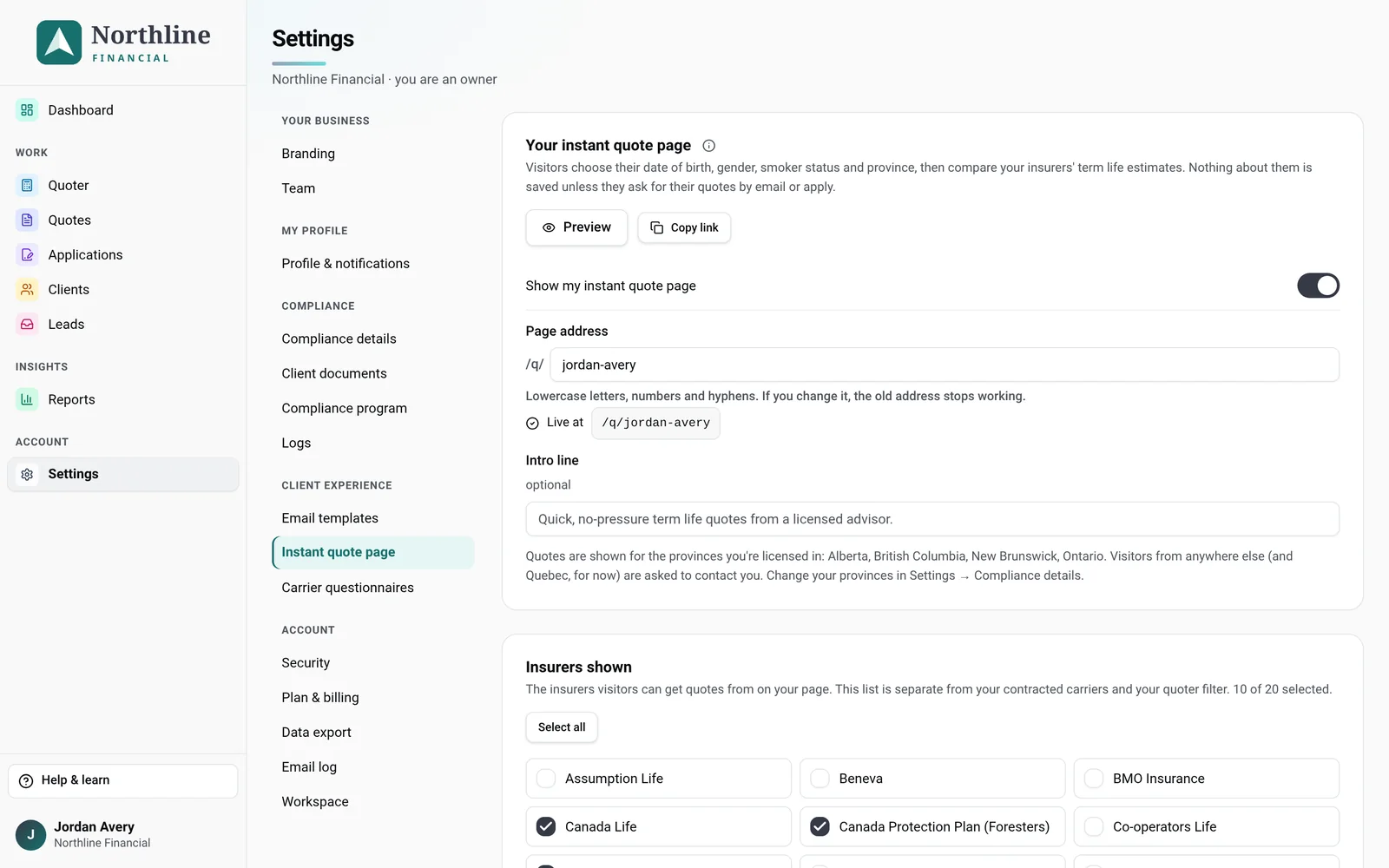
Your logo, colours and business name come from Settings → Branding.
Add it to your website
The simplest way: click Copy link and add it to your website as a link or button, the same way you'd add any other link. You can also share it in emails, social posts or your email signature.
Once your page is live, the Put it on your website card gives you ready-made code. Pick one:
- Button that opens your page: click Copy button code and paste it into your website's HTML. It's a plain link with no script, so it works on any site builder that accepts HTML.
- Whole page inside your site: click Copy embed code and paste it into an HTML or embed block on one of your pages. Visitors get quotes without leaving your website, and the page sizes itself to fit. If your site builder removes scripts, the page still works at a fixed height with its own scroll bar.
Use your own domain
You can show your page on your own web address, like quote.yourdomain.ca.
- In Settings → Instant quote page, find Use your own domain.
- Type the address under Web address and click Connect.
- PolicyStream shows the DNS record to add (a CNAME, and sometimes a TXT record for the certificate) with copy buttons. Add every record it lists where your domain is managed, for example GoDaddy, Cloudflare, Wix or Squarespace. Some DNS hosts want only the first part of the name (for example
quote). - Wait for the status to change from Pending DNS to Issuing certificate, then Active. DNS changes can take from a few minutes to a few hours. PolicyStream checks every couple of minutes, or you can click Check now. The security certificate is handled for you.
Can't add the CNAME yet? Open Can't add the CNAME yet? Prove it's your domain first for an ownership record you can add first.
Once it's active, Copy link and the button code use your own address. Your PolicyStream address keeps working too. Keep the DNS record in place: if it's removed, the page stops showing at your domain. To stop using it, click Remove.
What visitors see
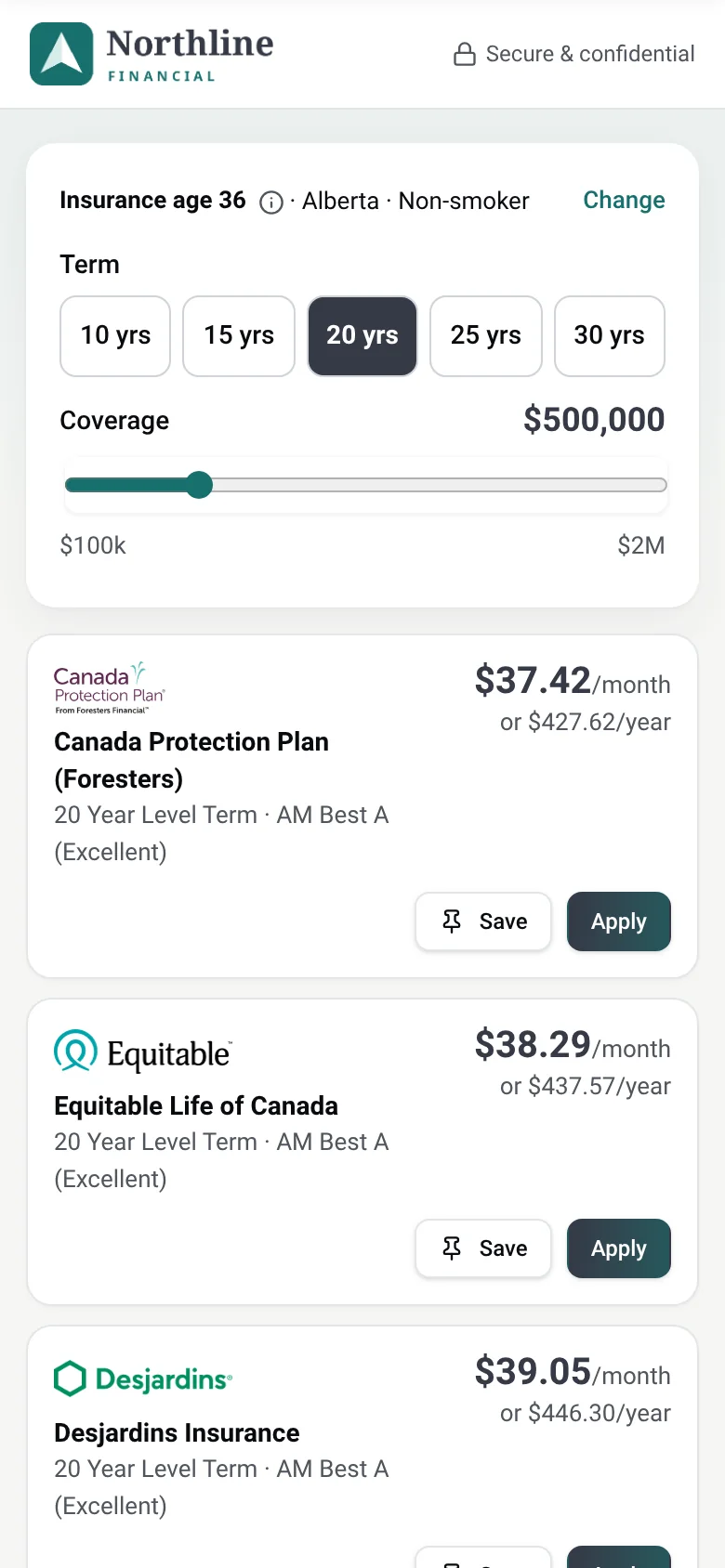
Visitors enter their date of birth, gender, tobacco use and province, then see term life estimates from the insurers you chose (the five cheapest first, then a link to see the rest). They pick the term and move the coverage slider themselves. Prices are always at the Regular health class, which visitors never see. They can:
- Save a few quotes and click Email me these quotes, or
- click Apply on a quote, add their contact details and click Start my application. PolicyStream emails them a secure application link. You review their answers before anything goes to an insurer.
The page has no needs analysis. The visitor chooses the amount and term, and the footer explains that prices aren't guaranteed and coverage only starts once a policy is in force.
Work your leads
Click Leads in the sidebar. It shows once you're allowed a page (owners and admins: once anyone is) or have leads. You'll see everyone who asked for quotes by email or applied, with their details, saved quotes and status.
- Open a lead to see their quotes, their history and, if they emailed themselves quotes, whether they opened the report.
- Change the status as you go: New, Contacted or Closed.
- Visitors who clicked Start my application are already client files with an application. Their lead shows Converted and an Open client file button.
- For visitors who only emailed themselves quotes, click Make client file at the top of the lead when you're ready to work with them. If a client with that email already exists, PolicyStream tells you and offers Link this lead to that file.
Leads and applications land with the advisor whose page they came from. Advisors see their own leads; owners and admins see everyone's.
Good to know
- If you change your page address, the old address stops working. Update the link on your website too.
- Prices only show for provinces you're licensed in (set in Settings → Compliance details). Visitors from other provinces, and from Quebec, see your contact details instead.
- Marketing consent on the page is a separate, unticked box. If a lead shows "No marketing consent", don't add them to newsletters or marketing emails.
Still stuck? Email [email protected].