
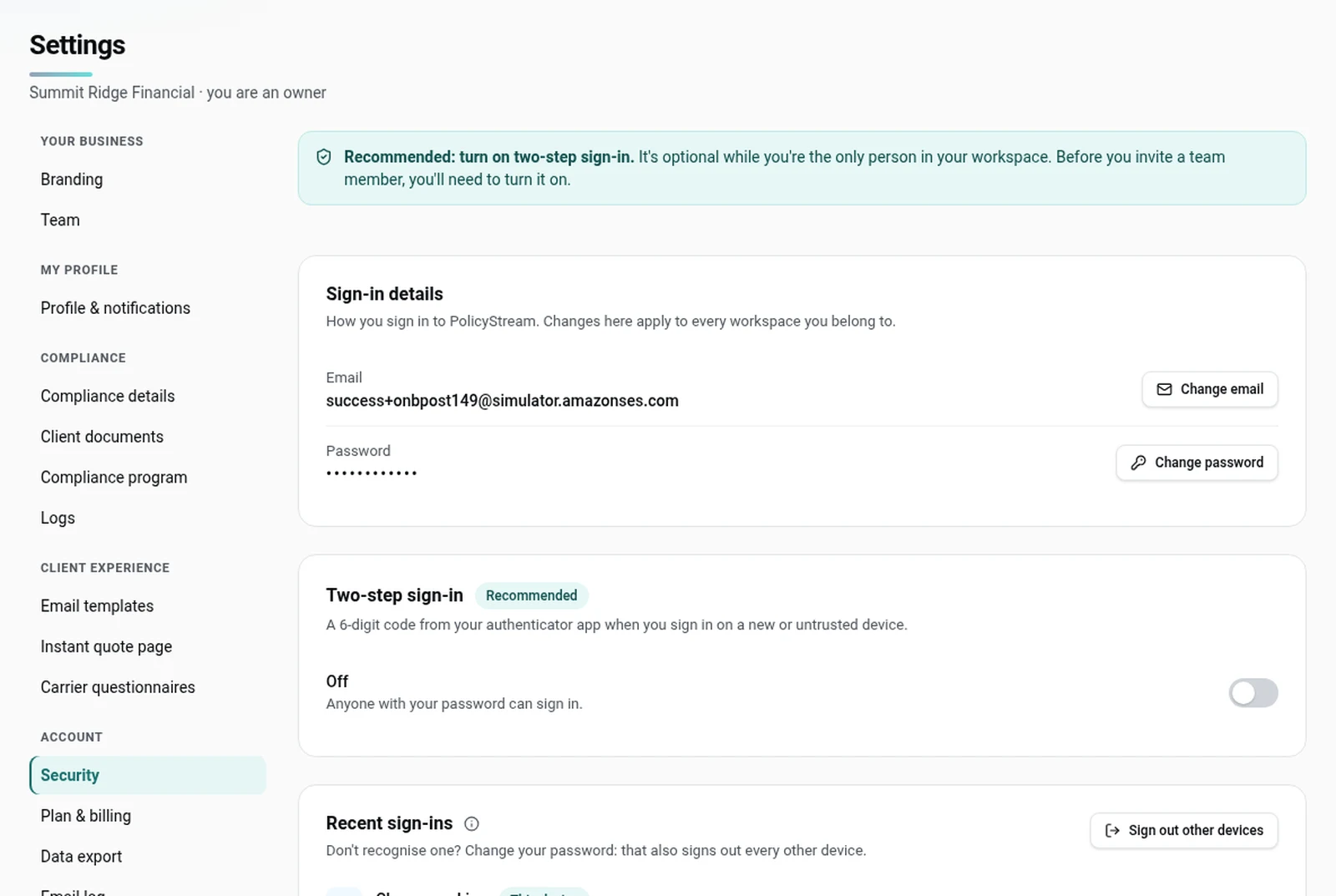
Your clients' files include health information. These settings help you keep them safe. They're in Settings → Security. Your sign-in details apply to every workspace you belong to.
Two-step sign-in
Two-step sign-in asks for a 6-digit code from an authenticator app after your password, when you sign in on a new or untrusted device. There's no text-message code, which protects you from SIM-swap attacks.
- It's recommended for everyone.
- It's required for owners and admins once a workspace has two or more people (open invites count). They can't turn it off.
- You'll need it before you can invite someone, and before you can export data.
Turn it on
- Open your authenticator app on your phone (for example Google Authenticator, Microsoft Authenticator or 1Password).
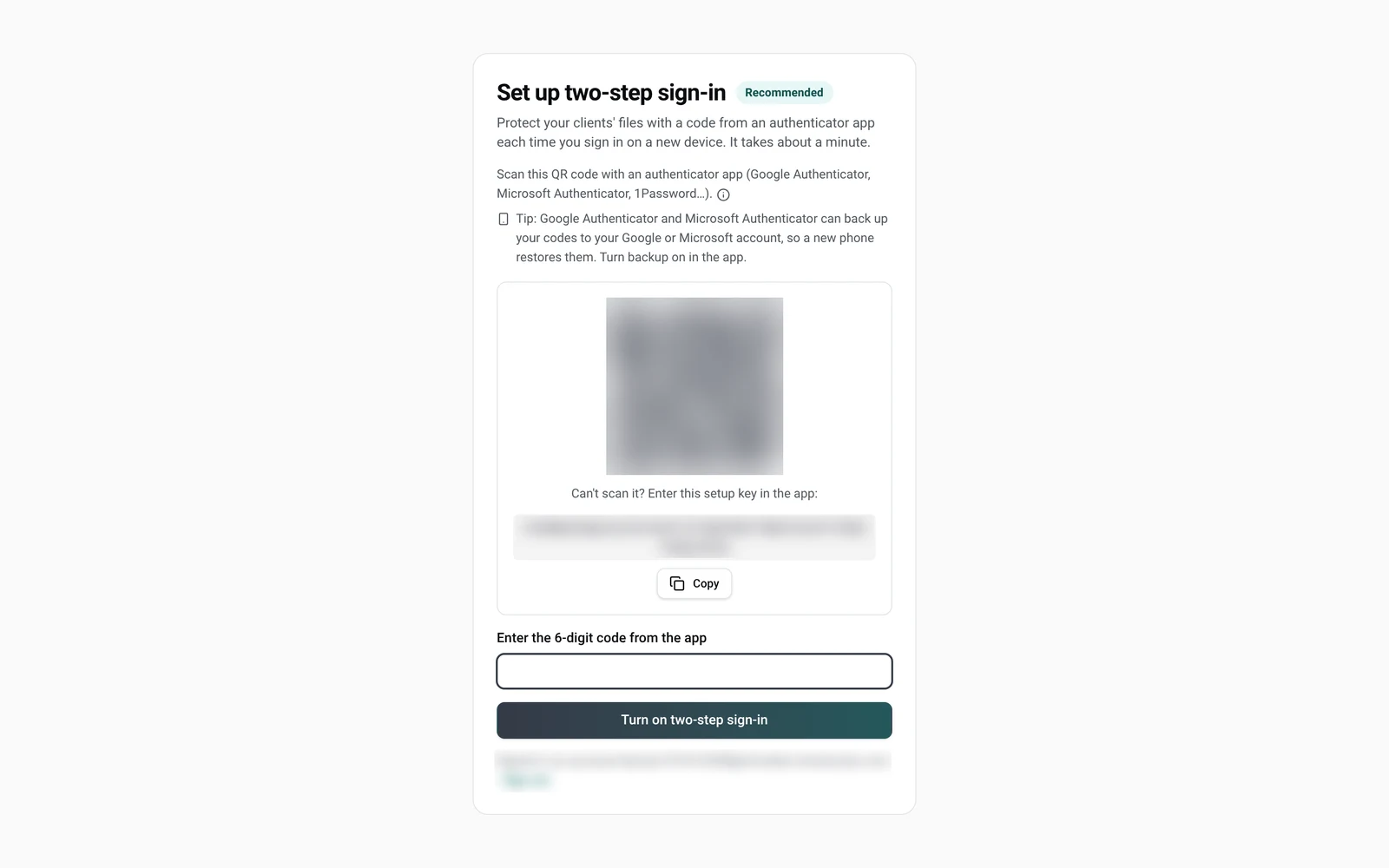
- In PolicyStream, click Set up now (on the offer after you sign in, or the reminder banner), or turn on the Two-step sign-in switch in Settings → Security.
- Scan the QR code with your authenticator app. Can't scan it? Type the setup key shown under it.
- Enter the 6-digit code it shows and click Turn on two-step sign-in.
Lost your phone? Email [email protected]. Resets are done by hand after we check it's you.
Trusted devices
When you enter a code, you can tick Trust this device for 30 days. That device then skips the code for 30 days. It's unticked by default.
Settings → Security lists your Trusted devices. Use Forget for one device, or Forget all.
Recent sign-ins
Recent sign-ins shows your last 10 sign-ins with your password: the device, for example "Chrome on Mac", a rough location and the time. The location can be off, especially on mobile data or a VPN. We don't keep your IP address.
Don't recognise one? Change your password. That also signs out every other device.
Other settings
- Change password: at least 12 characters, with upper case, lower case and a number. Other devices are signed out and we email you to confirm.
- Change email: enter the new address and confirm it's you with your password (and authenticator code, if two-step sign-in is on). We send a 6-digit code to the new address. Once you enter it, every other device is signed out.
- Sign out other devices (under Recent sign-ins): confirm with your password. It keeps you signed in here and signs out everywhere else.
Automatic sign-out
PolicyStream signs you out after 30 minutes without activity. You get a Still there? warning 2 minutes before. You're also signed out 12 hours after signing in with your password.
Where your data lives
Your data is stored in Canada: the database, backups, files and logs. Email is sent through Amazon's email service in Canada. Emails to clients never include their answers. Stored data is encrypted.
Each workspace's data is kept separate in the database. Advisors see only their own clients. PolicyStream's own admin screens never show your client files.
Good to know
- Each person's sign-in is their own. Don't share logins: invite people instead.
- Autofill keys can be revoked any time in Settings → Autofill.
- Client links don't need a password. The first device that opens a link is remembered. Any other device has to enter a code we email to the client.
Still stuck? Email [email protected].