
Your clients see your brand, not PolicyStream's. Your name and logo appear on client links, your instant quote page, emails and documents. Your colours appear on the client links and your quote page.
Branding is in Settings → Branding. Only owners and admins can change it.
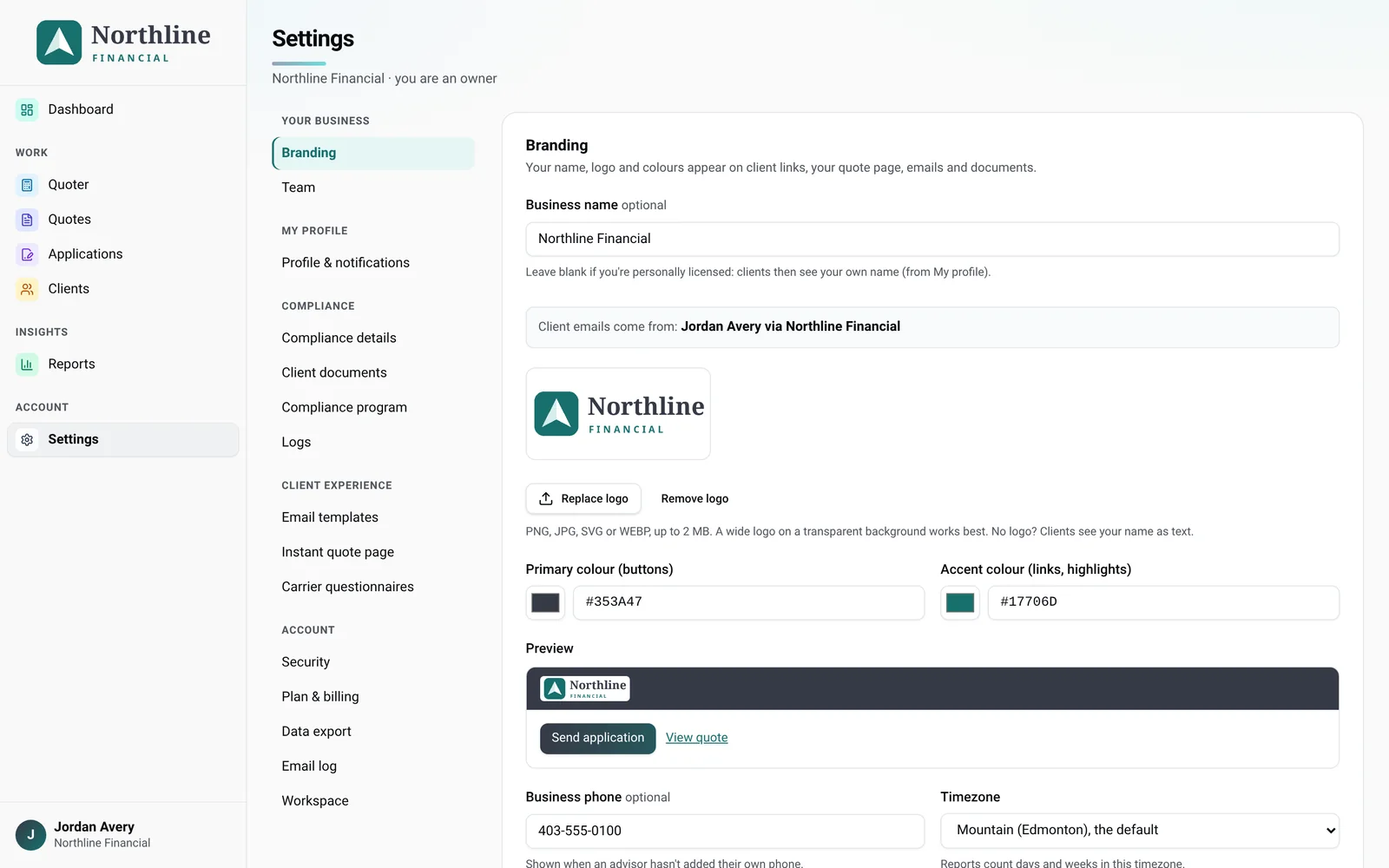
Add your logo
- Go to Settings → Branding.
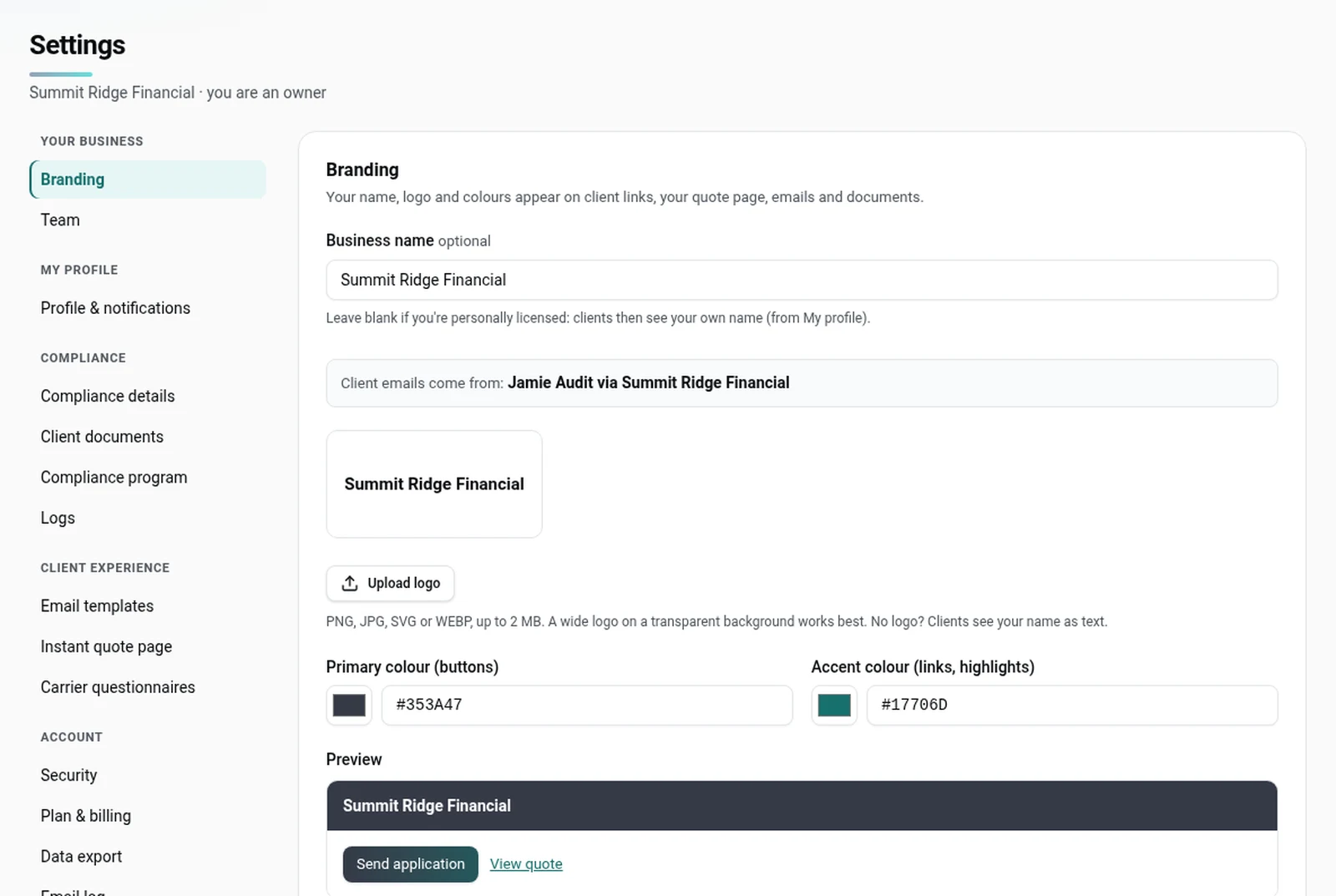
- Click Upload logo and choose a file. PNG, JPG, SVG or WEBP, up to 2 MB.
- The logo saves as soon as it uploads. You don't need to click Save changes.
A wide logo on a transparent background works best. For emails and the compliance PDF, use a PNG or JPG. They can't show SVG or WEBP logos, and emails skip logos over 400 KB. In those cases they show your name instead.
To change it later, click Replace logo. To take it off, click Remove logo. With no logo, clients see your name as text.
Set your colours
- In Primary colour (buttons), pick a colour or type a hex code such as #353A47.
- In Accent colour (links, highlights), pick a second colour such as #17706D.
- Check the Preview, then click Save changes at the bottom of the page. The button appears once you've changed something.
Don't like the result? Reset to default colours puts the PolicyStream colours back, then click Save changes. The reset button only shows when you're not already on the default colours.
Business name, phone and timezone
- Business name: optional. Leave it blank if you're personally licensed. Clients then see your own name (from My profile). The line under it shows who client emails come from, for example "Jane Doe via Northwind Insurance".
- Business phone: shown when an advisor hasn't added their own phone.
- Timezone: Reports count days and weeks in this timezone. Mountain (Edmonton) is the default.
Click Save changes when you're done.
Where your brand shows up
- The secure application link and the signing link your client opens: logo, name and colours
- Your instant quote page: logo, name and colours (it takes them from this page)
- Emails PolicyStream sends to your clients: logo (PNG or JPG, under 400 KB) and name. Emails keep the standard PolicyStream colours.
- The compliance PDF: logo (PNG or JPG) and name
Good to know
- Owners and admins can also set the logo and colours in the setup wizard. Both save to the same place.
- If your logo looks small, try a wider version with less empty space around it.
- Your address, MGA and other compliance details are on a separate page: Settings → Compliance details.
Still stuck? Email [email protected].