
You send your client one secure link. They answer the general application and the carrier's medical questions, read and sign the compliance documents, and upload anything you ask for.
Start a send
Click Send application on a saved quote, a client's file, the dashboard or the Applications page. If you start from a quote, the client and the quote are attached, and the carrier you starred is picked for you when its questionnaire is turned on.
The send page has five numbered steps.
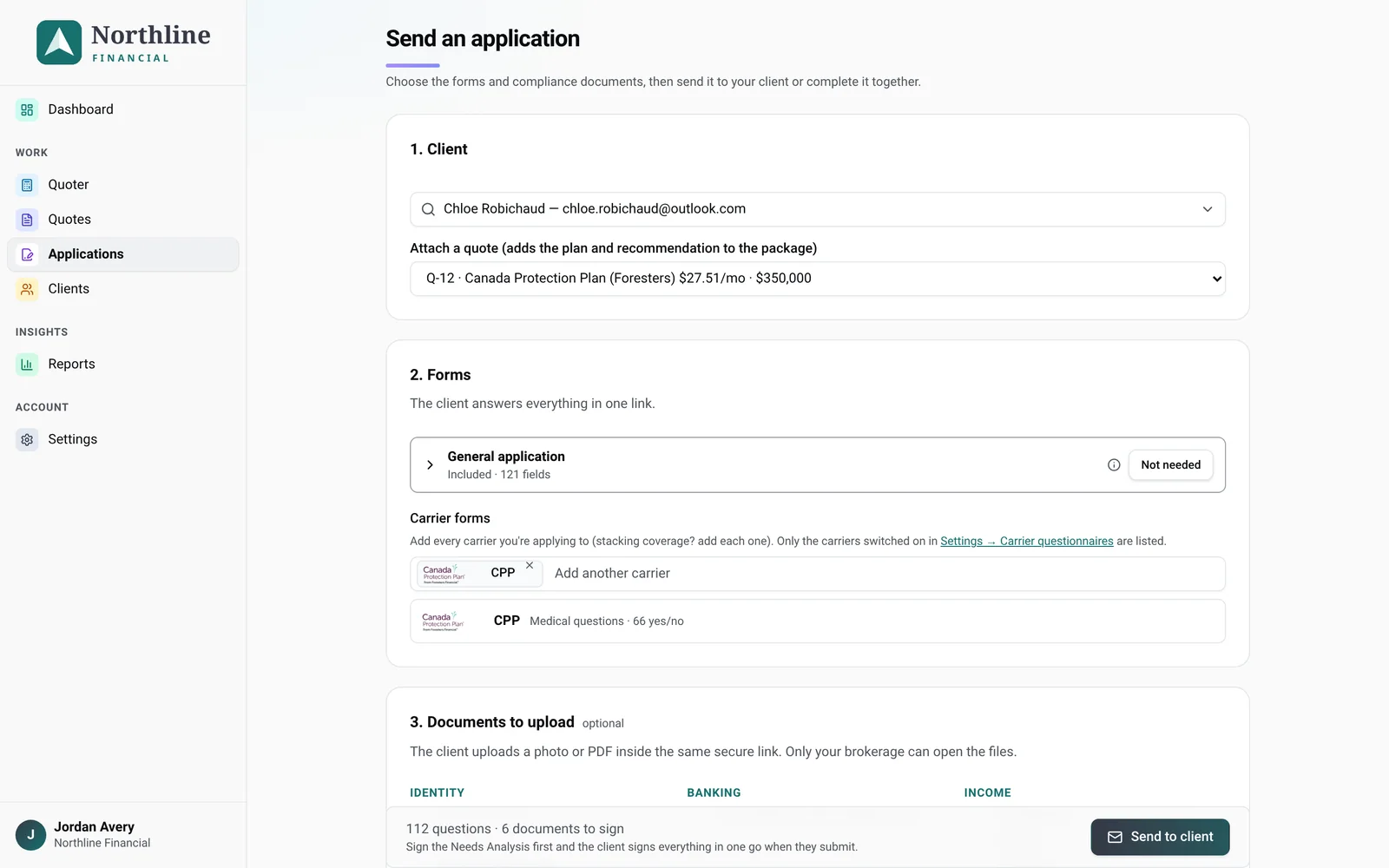
1. Client
Search clients by name or email, or fill in a new client's name, email and phone. The client needs a valid email in both modes: the secure link and new-device codes go there. For an existing client you can also Attach a quote, which adds the plan and recommendation to the package.
2. Forms
- Leave General application included. It's asked once, whichever carriers you include. Click Not needed only if you don't want it on this application.
- Under Carrier forms, search for a carrier to add its medical questions. Add more the same way (the box then says Add another carrier).
- Products applied for shows when a carrier's form covers more than one product. Tick the product or products your client is applying for. If you started from a quote, the matching products are ticked for you. You need at least one: until you tick one, the send is blocked with Select a product.
- Sections to ask only shows for simplified-issue products, and lists only the sections of the products you ticked. A product with a single section has no choice to make: it shows Every question is asked. Sections start ticked, so the client is asked everything, unless you unticked some on your last send (your choice is remembered). Untick a section only when you already know the client can't qualify for that plan level. For example, if they can only get a deferred or simplified plan, untick the higher-plan sections (such as the preferred plan sections) so they aren't asked questions that don't apply. Eligibility and tobacco are always asked, and you must keep at least one section. Unticked sections show as "Not asked" and Autofill leaves them blank.
Only carriers turned on in Settings → Carrier questionnaires are offered.
3. Documents to upload (optional)
Tick the documents you need, such as a void cheque or a driver's licence. To ask for something else, type it in the Other document box (for example "Proof of address") and click Add.
4. Compliance package
Your client documents (advisor disclosure, letter of engagement and the others in Settings → Client documents) are listed with a Preview. Untick any you don't want to send. The Needs Analysis & Reasons for Recommendation is on every application. Then:
- Needs analysis: Complete and sign now (a quick calculator is offered if there's none on file), or Complete after the client submits, which adds short basic needs questions to the client's link. A needs analysis on file from the last 12 months is reused.
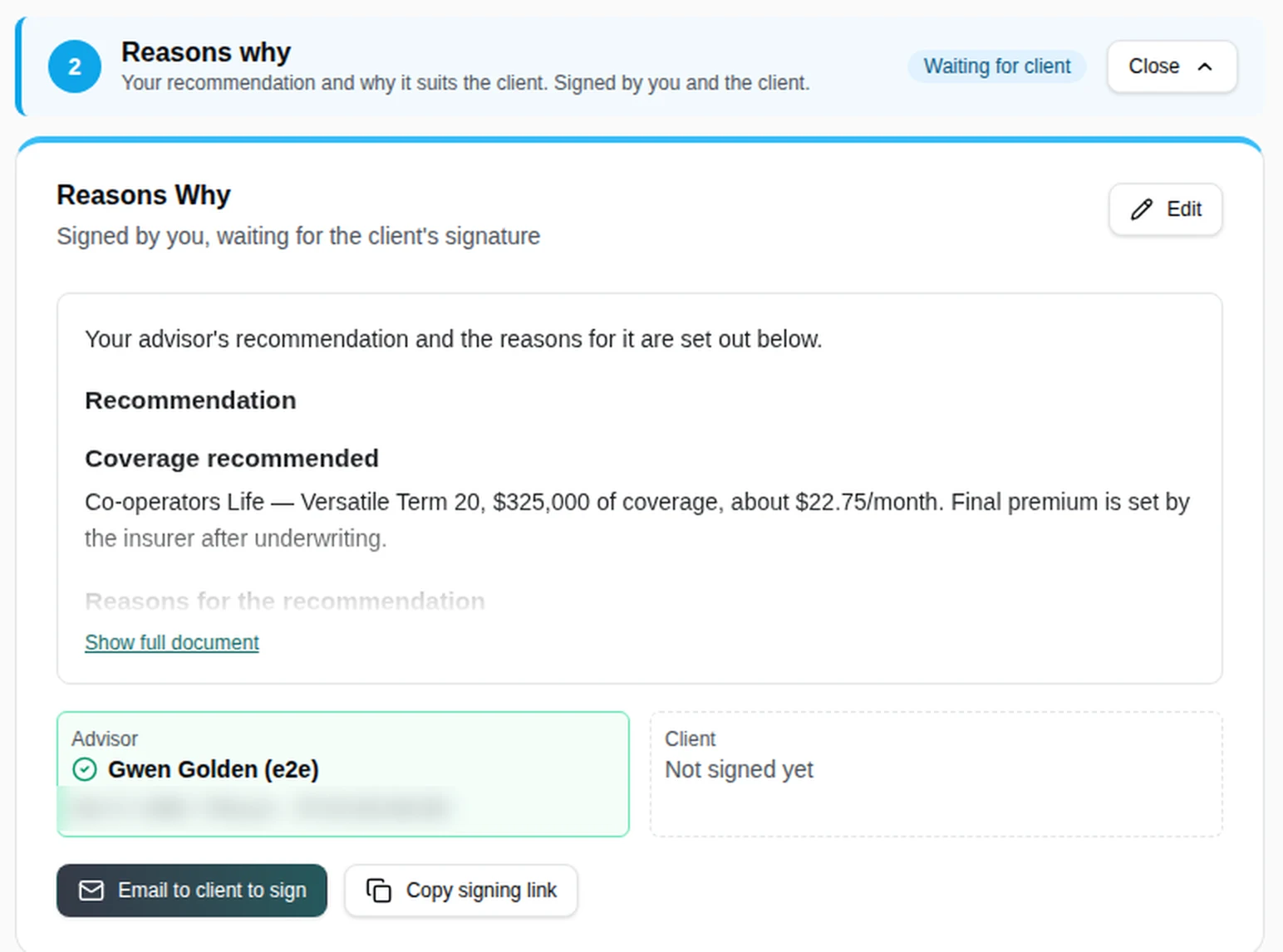
- Reasons why: Complete and sign now, or Complete after the client submits.
- Replacement Acknowledgement (the LIRD): tick it only if this coverage replaces a policy, then fill it in and sign. The client signs it in their link. Need it after the client submits instead? Leave it unticked and add it later from More actions on the application page.
5. How will it be completed?
- Email it to the client: PolicyStream emails the link for you. The email starts from your template in Settings → Emails, and you can edit the subject and message for this client before you send.
{{link}}becomes the secure button; if you delete it, the link is added at the end. - Complete it together: opens the client view in a new tab now, on a call or in person.
Then click Send to client (or Open client view) at the bottom. The bar there shows the question count and anything still blocking the send.
If the email can't be sent, the application is still created and you can copy the link from the application page. Keep the link private.
After you send
Open the application from Applications to follow it. Statuses run from Sent to client to Client started, Submitted — review, Reviewed, Sent to carrier and then the carrier's decision. For privacy the client link is shown only once, in the browser you sent it from. While it's there, the application page offers Copy client link, Complete together and Send reminder. Otherwise click Reissue link to get a new one (the old link stops working).
The signing link
Documents you finish after the client submits (for example Reasons why) need the client's signature too. Once you've signed, the Compliance tab offers Email to client to sign (then Email again) or Copy signing link. It's one link for everything waiting on the client. Later documents show up on the same link.
Good to know
- Missing compliance details never block a send. The send page lists anything not set yet, and it shows as "[not set]" in the documents.
- Client links work for 30 days. Send reminder emails the same link and restarts the 30 days, even after it has expired.
- Need more after the client submits? Use More actions → Request more to ask for extra documents and one question. The client gets a short secure link, with no new signature.
- Switching carriers after the client submits? More actions → New application from A-x carries recent answers over for the client to confirm.
Still stuck? Email [email protected].