
Every PolicyStream account is a workspace. Working solo? The workspace is just yours. Invite advisors or assistants whenever you're ready.
Your team is in Settings → Team.
The four roles
- Owner: runs the workspace. Everything an admin can do, plus managing owners, cancelling the plan and closing the workspace.
- Admin: manages settings, members (not owners) and Plan & billing, and sees every client file.
- Advisor: works with their own clients: quotes, applications and compliance.
- Assistant: helps the advisors they're linked to with their clients. Can't sign for the advisor, mark an application sent to the carrier or export client data.
Owners, admins and advisors are paid seats. Assistants are free.
Who sees which clients
Owners and admins see every client file. Advisors see only the files assigned to them. Assistants see the files of the advisors they're linked to. Only owners and admins can reassign a client.
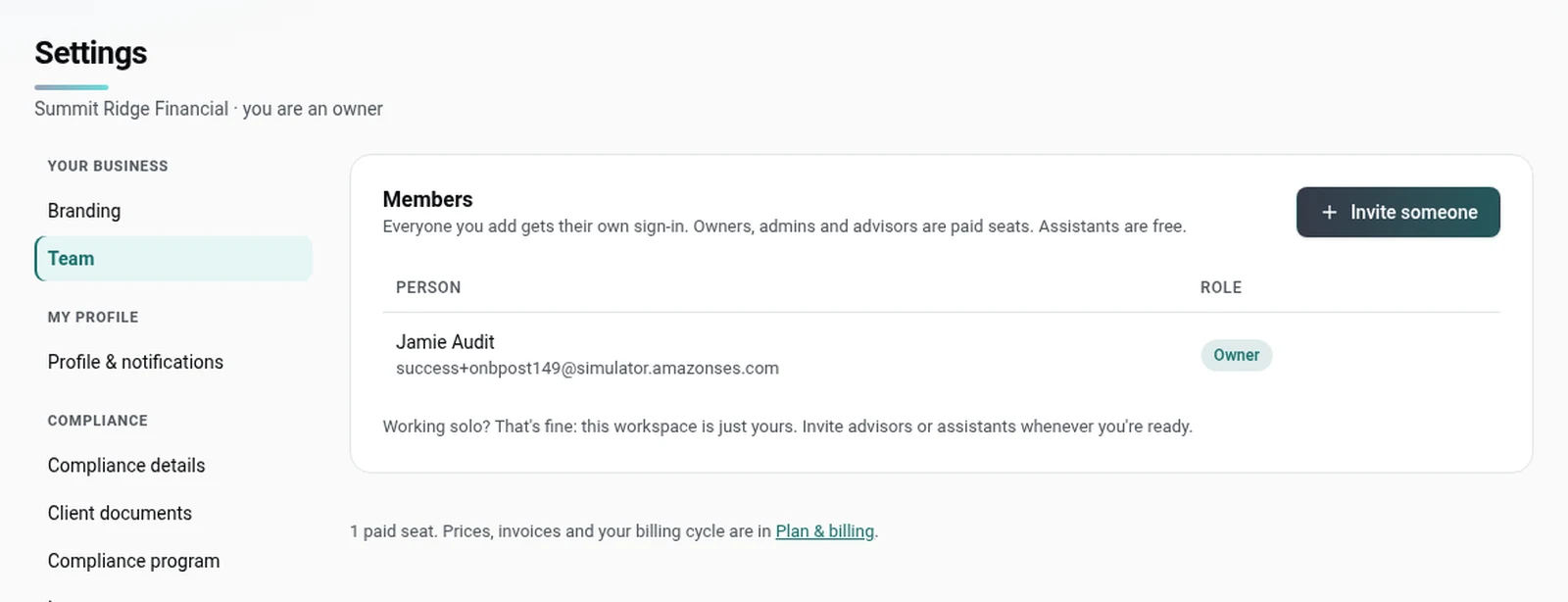
Invite someone
- Go to Settings → Team and click Invite someone.
- If two-step sign-in isn't on yet, you'll be asked to turn it on first. It protects your clients' data.
- Enter their email and pick a role. A line under the picker explains what the role can do, and what the seat costs (assistants are free).
- Click Send invite.
We email them a link that works once, for that email, for 7 days. The dialog also shows the link once, with a Copy link button, if you'd rather send it yourself.
Pending invites show under the roster with their expiry date. You can Resend email (the old link stops working) or Cancel invite.
Advisors can invite assistants too, with Invite an assistant. The assistant is linked to them when they accept. Advisors see, resend and cancel only the invites they sent.
Link assistants to advisors
Under each assistant on the roster, Works with lists their advisors. Use + Add advisor to link one, or the x on a name to unlink. Owners and admins can link anyone. An advisor can link or unlink only themselves.
Change a role or remove someone
Owners and admins can change a member's role with the picker on the roster, or click Remove. Only owners can change or remove an owner, or make someone an owner. When you remove someone, they lose access straight away. Their client files stay in the workspace, and an owner or admin can reassign them.
Good to know
- Once your workspace has two or more people (including open invites), owners and admins must use two-step sign-in.
- A workspace always keeps at least one owner. To hand it over, an owner uses Transfer ownership in Settings → Workspace. The other person gets an email and must accept in the app within 7 days.
- Adding a paid seat changes your bill. See Plans, billing and receipts.
- Turning an advisor into an assistant frees a seat from your next renewal. There's no credit for the current period.
Still stuck? Email [email protected].