
When your client submits, open the application from Applications (it shows Submitted — review). Everything you need to finish the file is on this page.
Review the answers
The Answers tab shows the general answers and each carrier's questions in the carrier's own wording. Uploaded documents are on the application too.
In the Broker checklist, under Third-party determination / AML / PEP checks done, you'll see the client declaration (third party, AML and politically exposed person questions) as nothing to report, review needed or incomplete, and an automatic client risk tier (Low, Medium or High). The tier is a suggestion for you to review. If the client declares they own and pay for the policy, no third party is involved and they aren't a politically exposed person, PolicyStream ticks that row for you.
Corporate clients
If you sent the application with Client type: Corporate, the client also tells you about the corporation: its directors, everyone who owns 25% or more (and, for a company or trust that owns shares, the people at the top of it) and where the corporation pays tax. The Broker checklist then has two more required rows, right after Owner, insured and beneficiary details confirmed:
- Corporation's existence confirmed: choose how you confirmed it (for example a certificate of status, the articles of incorporation or a Corporations Canada search), the document's date, and link the file if the client uploaded it.
- Ownership confirmed (25%+ owners, up to the people at the top): the row shows the owners the client listed. Choose the document you checked them against (for example the share register, an org chart signed by a director or a shareholder agreement) and link the file if you have it.
If you can't confirm who owns the corporation, pick Couldn't confirm, say why and record the most senior officer instead. That still counts as recorded, but it sets the client's risk to High. The risk is Medium when the corporation, or anyone who owns 25% or more, pays tax outside Canada.
Use Change or Clear on a row to fix it before the application is sent to the carrier.
Work through the To do card
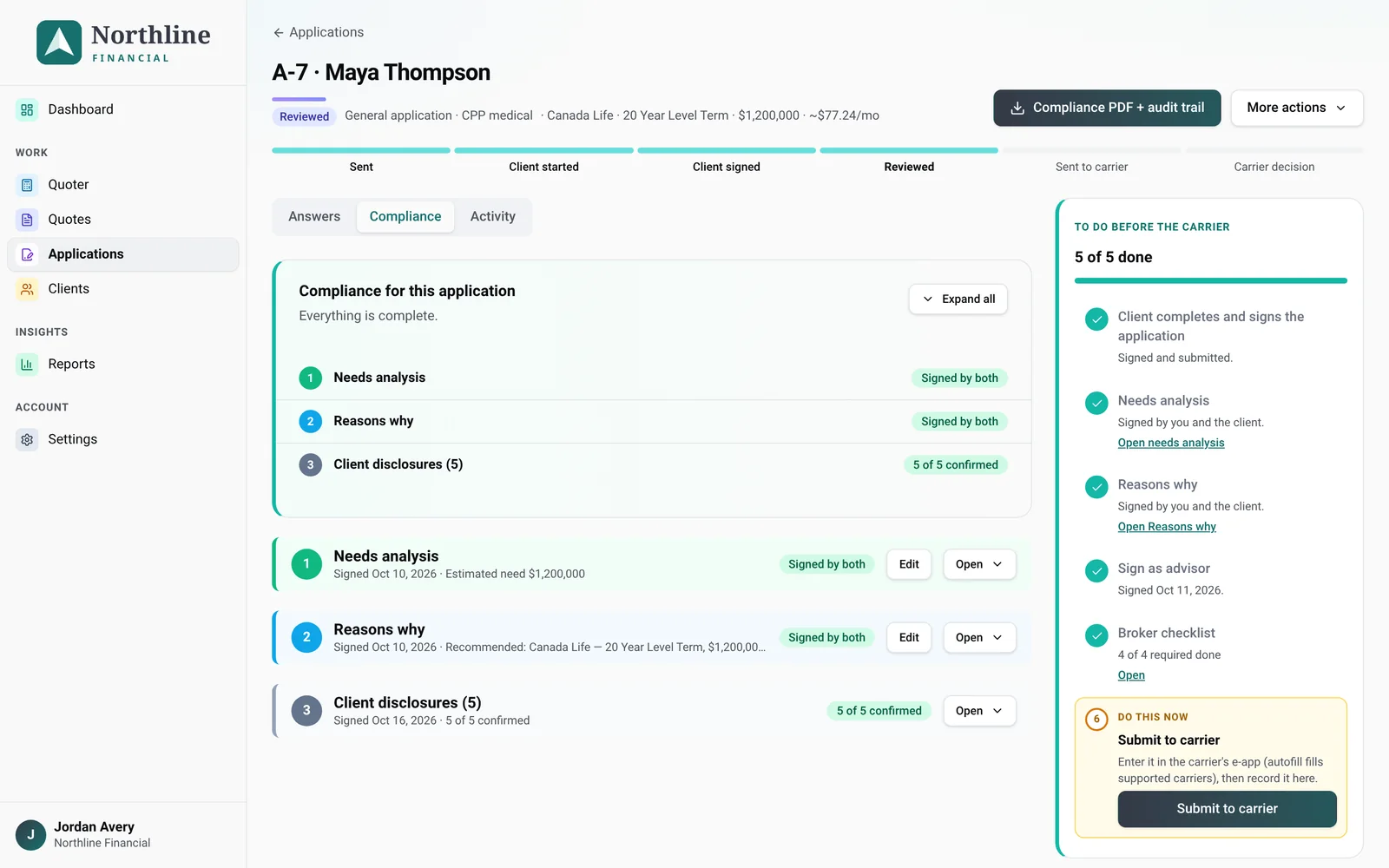
The numbered To do before the carrier card on the right lists every required step in order, and marks the one that's yours now with Do this now:
- Client signs
- Needs analysis
- Reasons why
- Replacement declaration (LIRD), only if you added one (More actions → Add replacement declaration (LIRD))
- Sign as advisor: your name and one tick signs the compliance package
- Broker checklist
- Submit to carrier
Steps waiting on the client don't stop you doing the next one. The Compliance tab holds the documents themselves: the needs analysis, Reasons why, any LIRD and the client disclosures. Use Expand all to open them all.
Submit to carrier
First enter the application in the carrier's e-app. This is where Autofill helps: see Installing and using Autofill.
Then record it in PolicyStream. Once the required checklist items and every signature are done, click Submit to carrier. Pick the carrier, add the carrier's application or policy number if you have it, and confirm the Coverage applied for (product, amount and monthly premium). PolicyStream offers to email the client an update, ticked by default; you can edit it or untick it. Click Save.
Not sending it yet? Click Not sending it yet? Mark it reviewed under the button.
Download the compliance PDF
Once the client has submitted, click Compliance PDF + audit trail at the top of the application. It has a cover and contents, each signed document (disclosures, needs analysis, Reasons why, any LIRD, the application signature and checklist), then an audit trail with who did what, when, from which device, and each document's fingerprint.
For a corporate client, the PDF also has a Corporate client page: the corporation's name, other business names, directors, purpose of the insurance, the shareholders, where it pays tax, its 25%+ owners up to the people at the top, and how you confirmed its existence and ownership (method, date, linked file, who recorded it and when). Foreign tax ID numbers are never printed, only whether there is one and where.
Apart from that page, the PDF doesn't print the client's application answers (only the client declaration summary). They stay in PolicyStream.
Record the carrier's decision
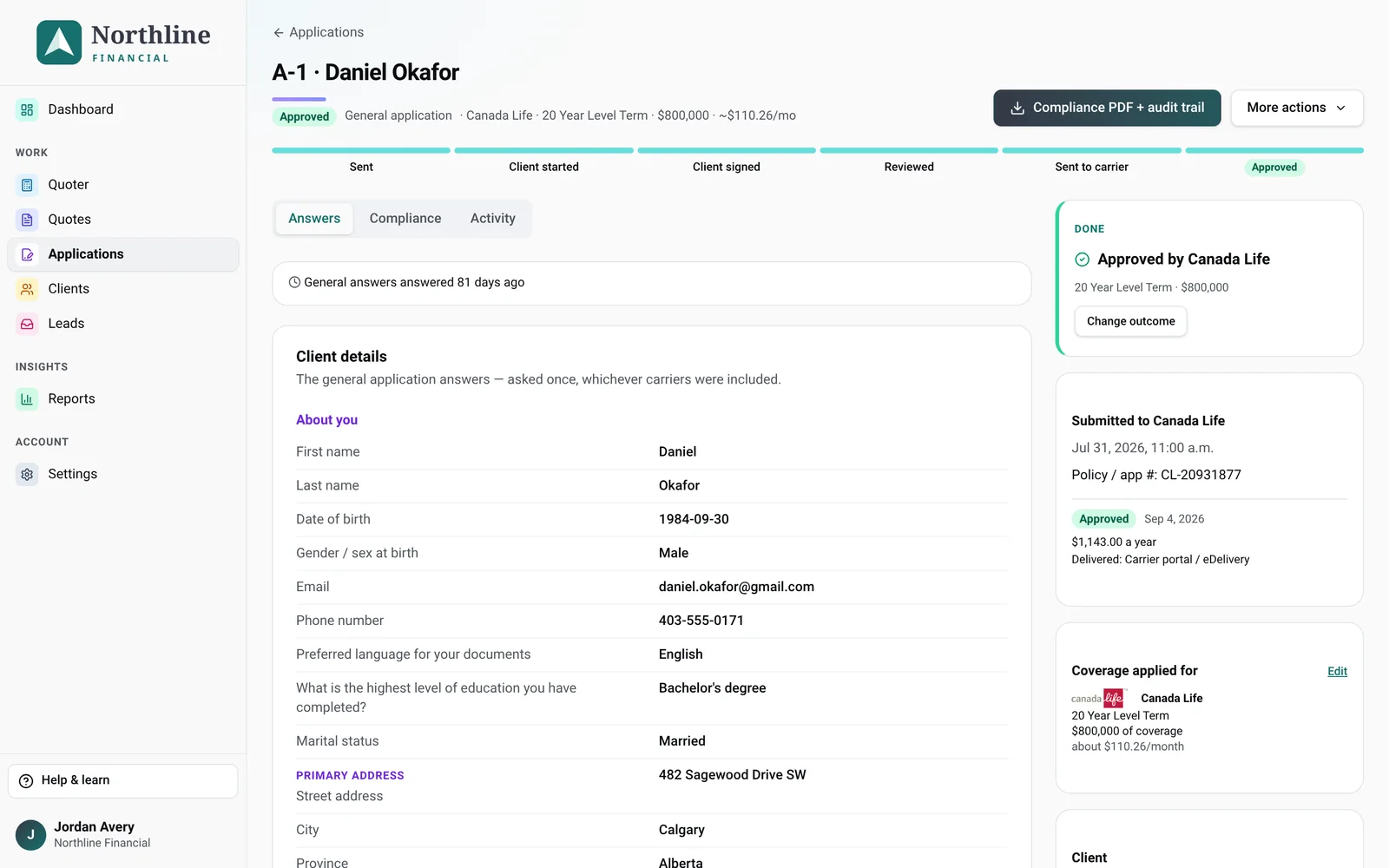
Once it's sent, the To do card shows After the carrier. Click Record carrier decision.
- Pick the outcome: Approved, Declined, Postponed or Not taken.
- For Approved, enter the annual premium and the date it was approved. You can also add the policy number, how it was delivered and the carrier's delivery receipt (PDF, JPG or PNG, up to 15 MB). For the other outcomes you can add a short note.
- For a new approval, PolicyStream offers an approval email to the client, which you can edit or untick before you save.
The receipt is added to the compliance PDF. If the decision changes, use Change outcome.
Good to know
- Assistants can help prepare a file but can't sign for the advisor or mark an application sent to the carrier.
- The dashboard has a Waiting on carrier queue. An application waiting more than 30 days for a decision turns amber.
- The compliance pack for your business (your program and policies) is a different download, in Settings → Compliance program (owners and admins).
- Need a void cheque, an ID or one more answer? More actions → Request more sends the client a short secure link. No new signature is needed.
Still stuck? Email [email protected].